


PlayStation 5 Maintenance: Care and How to Prevent Automatic Shutdowns
Learn how to care for your PlayStation 5 with preventive maintenance tips, cleaning, and proper ventilation. Discover the main causes of automatic console shutdowns and keep your PS5 in top shape with these valuable insights.
Buzzo Games
6/20/20254 min read
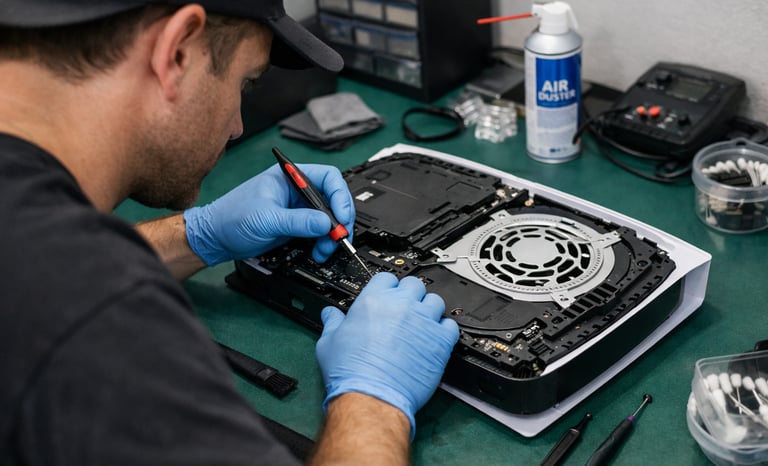
PlayStation 5: Care, Maintenance, and How to Prevent Automatic Shutdowns
The PlayStation 5 (PS5) is one of the most powerful and advanced consoles today. However, like any electronic equipment, it requires specific care and periodic maintenance to ensure peak performance and prevent issues such as automatic shutdowns.
Conclusion
Always keep your PS5 updated, avoid enclosed spaces, clean it regularly, and monitor any unusual behavior. Occasional shutdowns may happen, but if they become constant, it’s time for a deeper look.
Your PlayStation 5 is a powerful machine, but like any electronic device, it requires attention, care, and maintenance. By following best practices and staying alert to warning signs—such as automatic shutdowns or overheating—you can prevent major issues and significantly extend your console's lifespan.
Invest a few minutes in care, and you’ll ensure many years of gaming at peak performance!
Why Does the PS5 Shut Down by Itself?
Unexpected PS5 shutdowns are a common complaint and can have multiple causes, ranging from simple setting issues to serious hardware failures. Here are the most common causes and how to identify them:
🔥 1. Overheating
Description: When the internal temperature reaches a critical limit, the console shuts down automatically to prevent component damage.
Common Signs:
Console feels hot to the touch.
High fan noise before shutting down.
An "Your PS5 is too hot" message appears upon restarting.
Likely Causes: Dust buildup, poor ventilation, or dried-out thermal paste.
Solution: Clean the air intakes, move to a well-ventilated spot, or seek technical maintenance if the issue persists.
⚡ 2. Power Issues
Description: Power surges, voltage fluctuations, or internal power supply (PSU) failures can cause sudden shutdowns.
Common Signs: Shutdown occurs right after powering on or when starting demanding games.
Likely Causes: Faulty internal power supply, loose wall outlet connection, or lack of a surge protector.
Solution: Use a high-quality surge protector or UPS (Nobreak), test a different outlet, or have a technician evaluate the internal PSU.
💤 3. Rest Mode Bugs
Description: The PS5 enters Rest Mode by default, but system bugs can sometimes cause it to crash or fail to wake up.
Common Signs: Console turns off while idle; system requires a storage repair upon restarting.
Solution: Go to Settings > System > Power Saving and disable automatic Rest Mode. Keep your system software updated.
🧠 4. Software or System Errors
Description: Corrupted data or incomplete updates can trigger a protective shutdown.
Common Signs: Freezing before shutdown; recurring crashes when opening specific apps.
Solution: Boot in Safe Mode and select "Rebuild Database." If it persists, reinstall the system software via USB (Option 7 in Safe Mode).
💾 5. SSD or Storage Problems
Description: Faults in internal or external storage can cause critical system failures.
Common Signs: Games freeze and force a shutdown; menus are slow or unresponsive.
Solution: Temporarily remove external SSDs and test. Reinstall problematic games and use Safe Mode options to repair the system.
🎮 6. Game-Specific Errors
Description: Certain games may have critical bugs that crash the entire system.
Common Signs: The PS5 only shuts down during a specific game; others work perfectly.
Solution: Check for game updates, reinstall the title, or report the bug to Sony or the developer.
🧪 7. Hardware Issues (Motherboard, APU, PSU)
Description: Recurring shutdowns after all the above attempts may indicate physical internal damage.
Common Signs: Shutdowns persist after a factory reset; lights flash before the console dies; no error messages.
Solution: Take the console to an authorized Sony service center or a specialized technician. If under warranty, request a replacement.
Ad
Ad
Essential PS5 Care
To preserve your console and avoid technical issues, follow these best practices:
✅ 1. Proper Ventilation Keep the console in an area with good air circulation. Avoid enclosed cabinets, tight corners, and heat-retaining surfaces. Never turn on your device with covers or while covered by any objects.
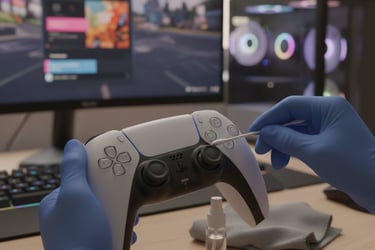
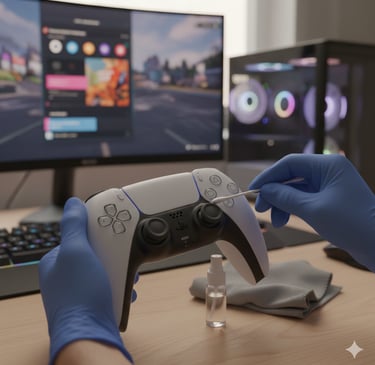
✅ 2. Regular External Cleaning Use a dry or slightly damp cloth (preferably anti-static) to clean the console's casing. Dust buildup affects ventilation and can lead to overheating. Never use abrasive products, alcohol, or cleaning chemicals, as these can damage the console’s finish.
✅ 3. Avoid Prolonged Use Without Breaks Alternate long gaming sessions with short breaks. This helps manage the internal temperature.
✅ 4. Electrical Protection Use a high-quality power strip or surge protector to prevent power spikes from damaging internal components. When turning off the device, disconnect the power and network (internet) cables; this prevents damage in case of lightning strikes on the electrical or internet grid.
✅ 5. Keep Software Up to Date Always keep your system and games updated. Updates fix bugs and improve hardware performance.
Periodic Maintenance: What to Do and When
Even as a modern console, the PS5 requires regular technical attention:
Internal Cleaning (Recommended every 6 – 12 months): You can perform basic cleaning by removing the side plates and carefully using a blower or vacuum to remove dust from the fan and vents. For a deep clean requiring disassembly, it is recommended to take it to a specialized service center.
Fan Inspection: If the fan starts making strange noises, it’s a sign of dust buildup or a defect. Seek technical assistance for maintenance; the fan is essential for the cooling system to work correctly.
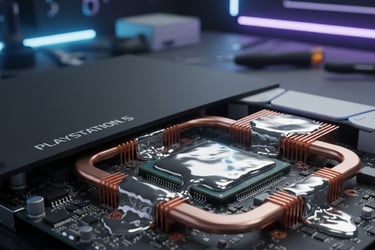
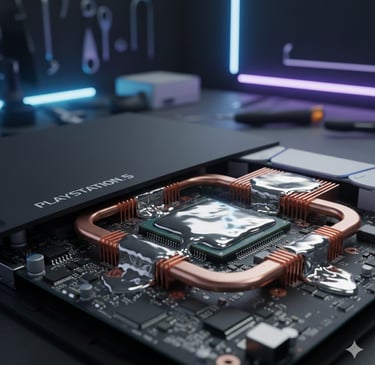
Thermal Paste Replacement: After intensive use over long periods (ideally after 2 years of continuous use), it is recommended to replace the processor's thermal paste. For this procedure, take your device to a specialized technician.
Cooling Stand Usage: Using a stand with built-in fans is a good practice that can help maintain a stable temperature in hot environments.
Check out more on this topic
Ad
Ad
Explore our website
Developer
Buzzo Games
contato@buzzogames.com.br
© 2024. All rights reserved.